This guide explains how to customize the branding of your Sippy Softswitch web interface to match your business identity. It describes how to change the default logo, update the business name, and modify the login and title text displayed throughout the web interface. The document also walks through accessing the Branding section in System Parameters, uploading a custom logo, saving configuration changes, and verifying the updated appearance on the sign-in page and browser window title.
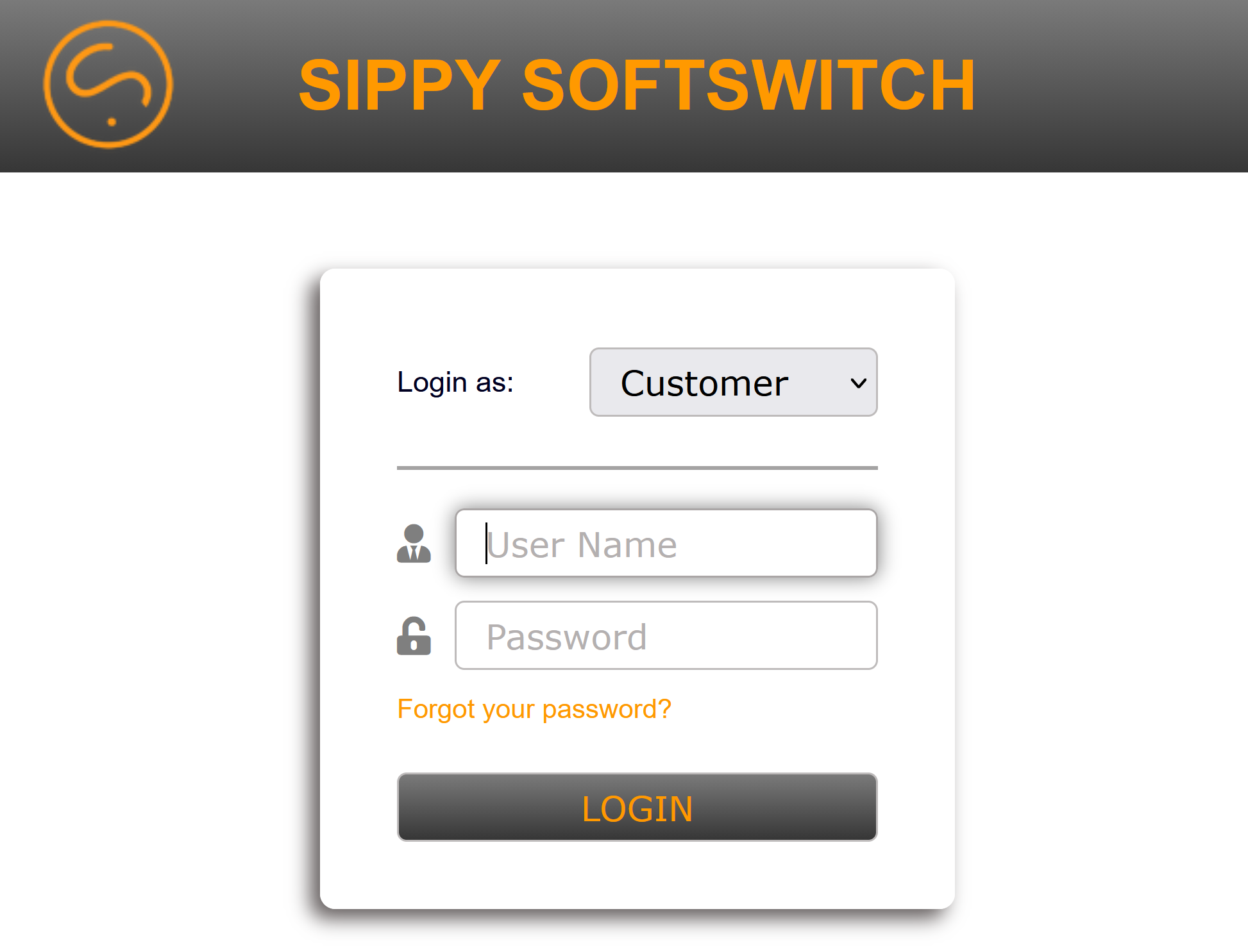
You can customize the Sippy Softswitch web interface to suite your business needs. The default Sippy logo and name are displayed on your switch as shown below.
Navigate to the System Management -> System Parameters -> Web Interface, Security
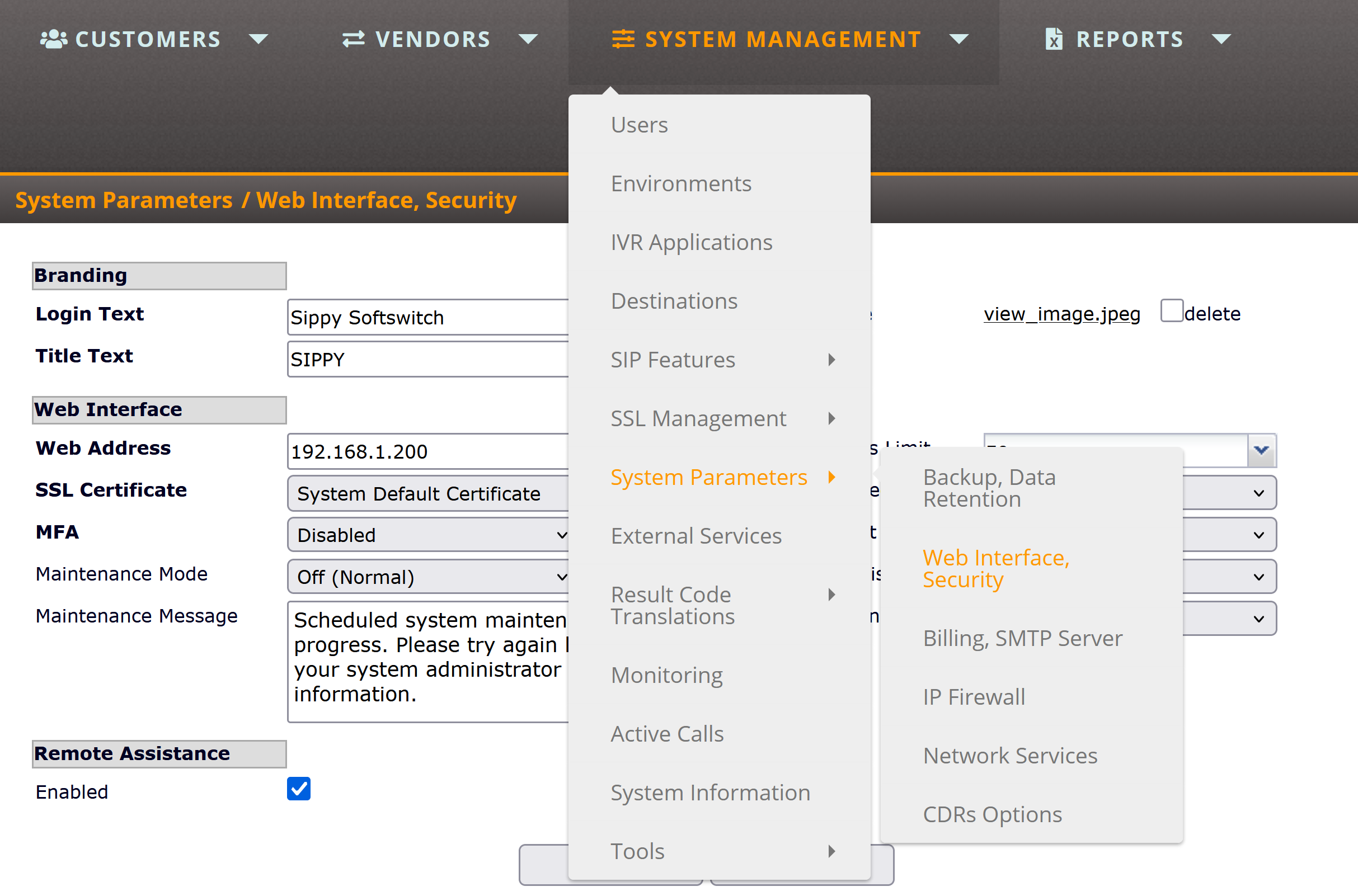
For the purposes of this guide, we will focus on the “Branding” section located on the "Web Interface, Security" page.

Adding your Business Name and Logo
To add your Business Logo, the default image must first be deleted. Select the delete checkbox, and click Save to remove the image.

Click Choose File and select the image that you want to upload to your switch. Also adjust Login Text and Title Text to reflect the Business Name that will be displayed on signup, and the name listed on the window of your Switch.
Click Save to confirm.

Once you've made changes to the login text, title, and image, click Save at the bottom of the screen.
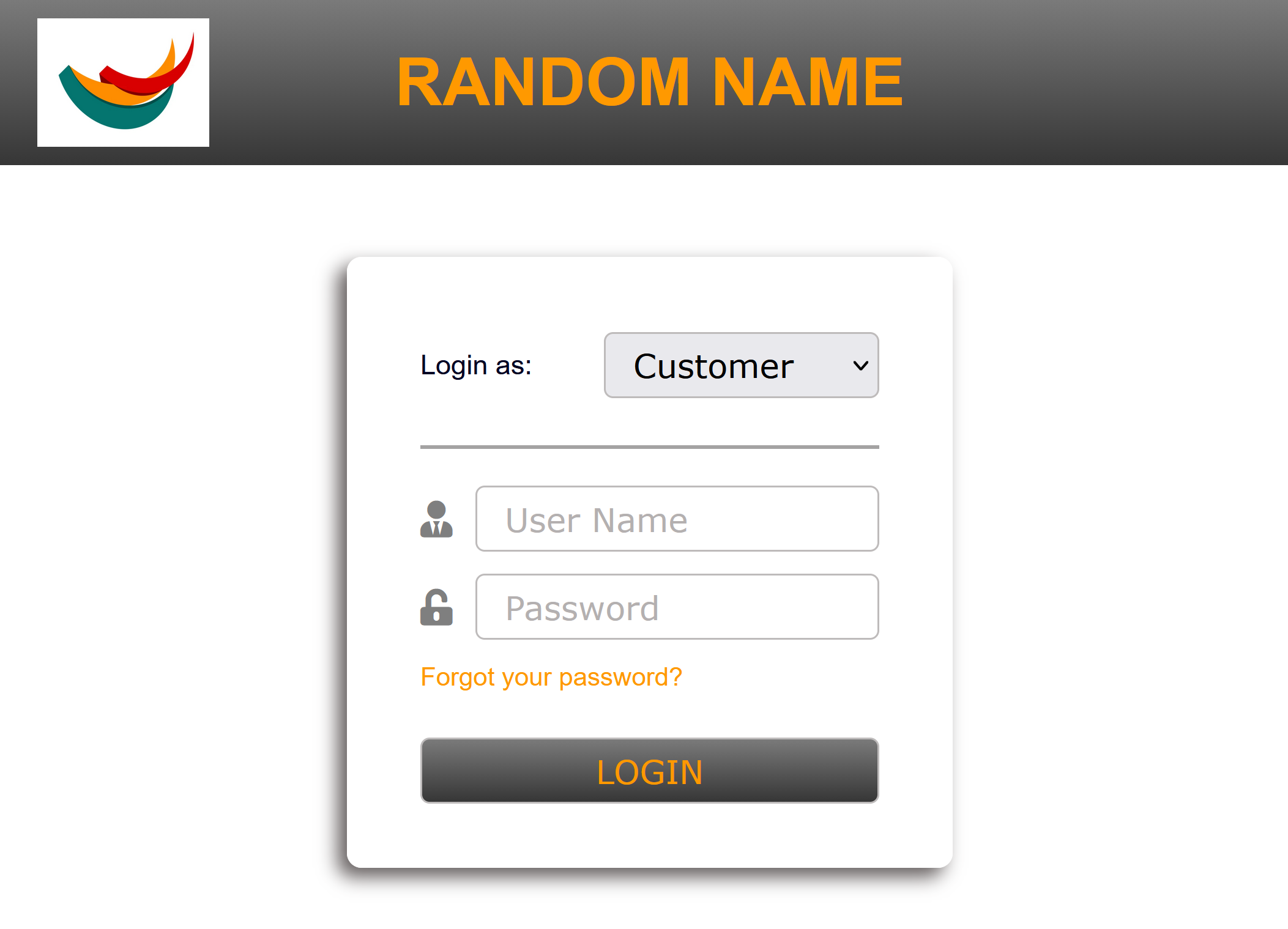
Your "Login Text" and Logo have now been customized on your switch. Your Sign in Window will display the adjustments you made as seen below.